
Connecting Robinhood Crypto
Robinhood Crypto connections use a paired key setup. Generate a public key in Trussdee, add that public key to Robinhood with Read permissions, then copy Robinhood's API key back into Trussdee.
Robinhood Crypto connections use a paired key setup. Generate a public key in Trussdee, add that public key to Robinhood with Read permissions, then copy Robinhood's API key back into Trussdee.
Security note: Select Read permissions only. Read-only access lets Trussdee sync balances and transaction history without allowing trades or other account actions.
Instructions
Open Settings
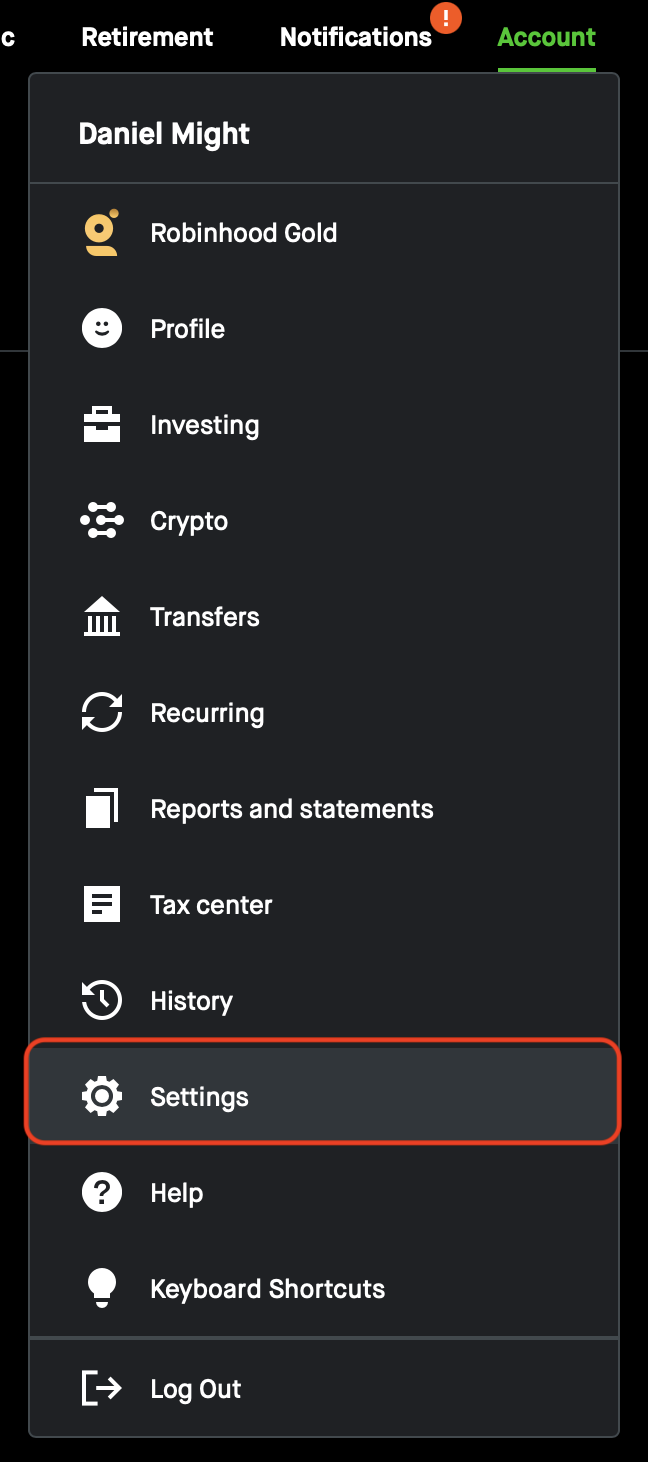
Log in to Robinhood and open Settings from your account menu.
Open the Crypto tab
In Settings, select Crypto from the tabbed menu.

Add an API key
Click Add API key. If you do not see the button, scroll farther down the Crypto settings page.

Generate a public key in Trussdee
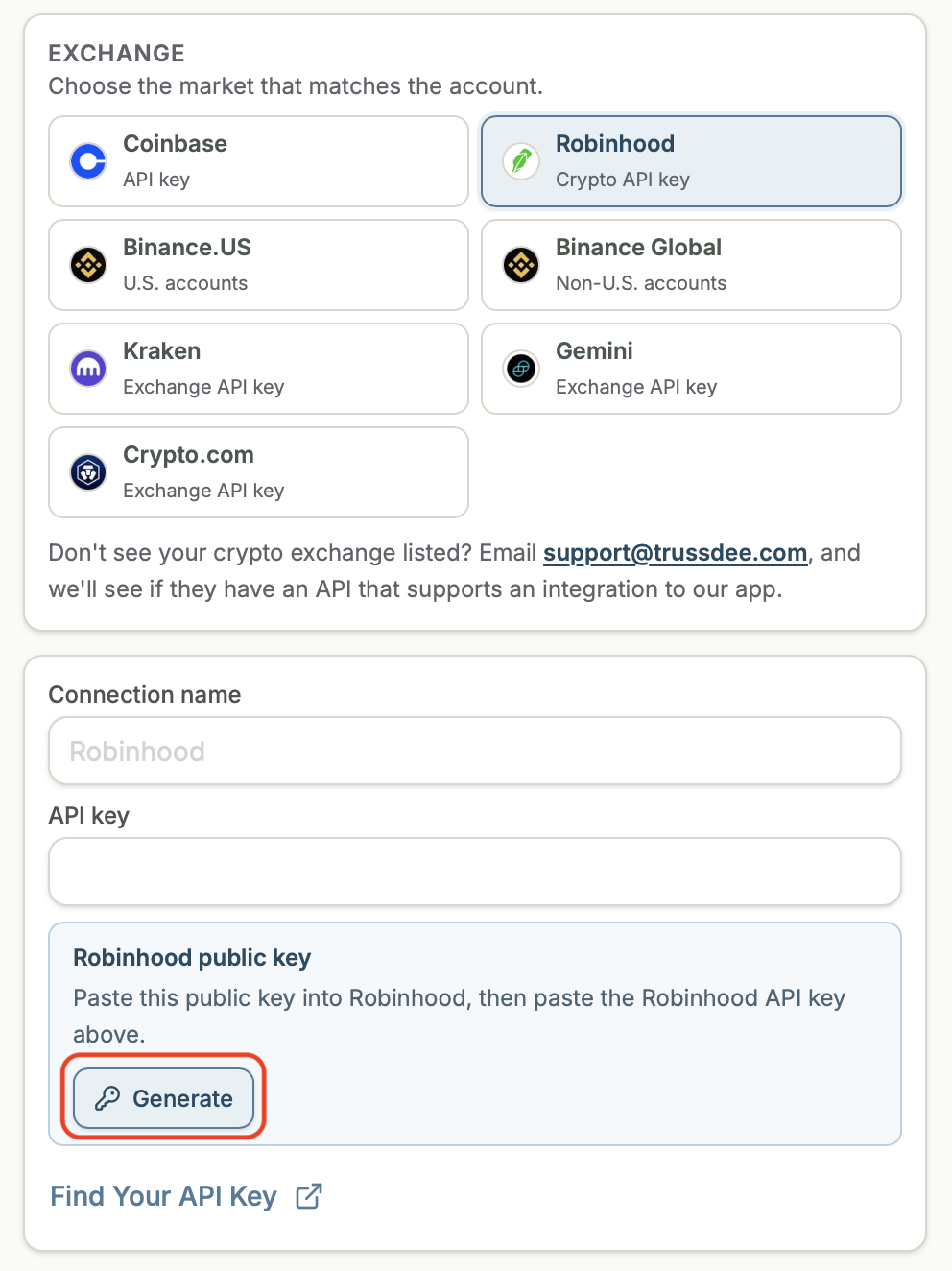
Return to Trussdee, select Robinhood as the provider, and click Generate. Keep the drawer open until the connection is complete because this public key must be paired with the Robinhood key you create.
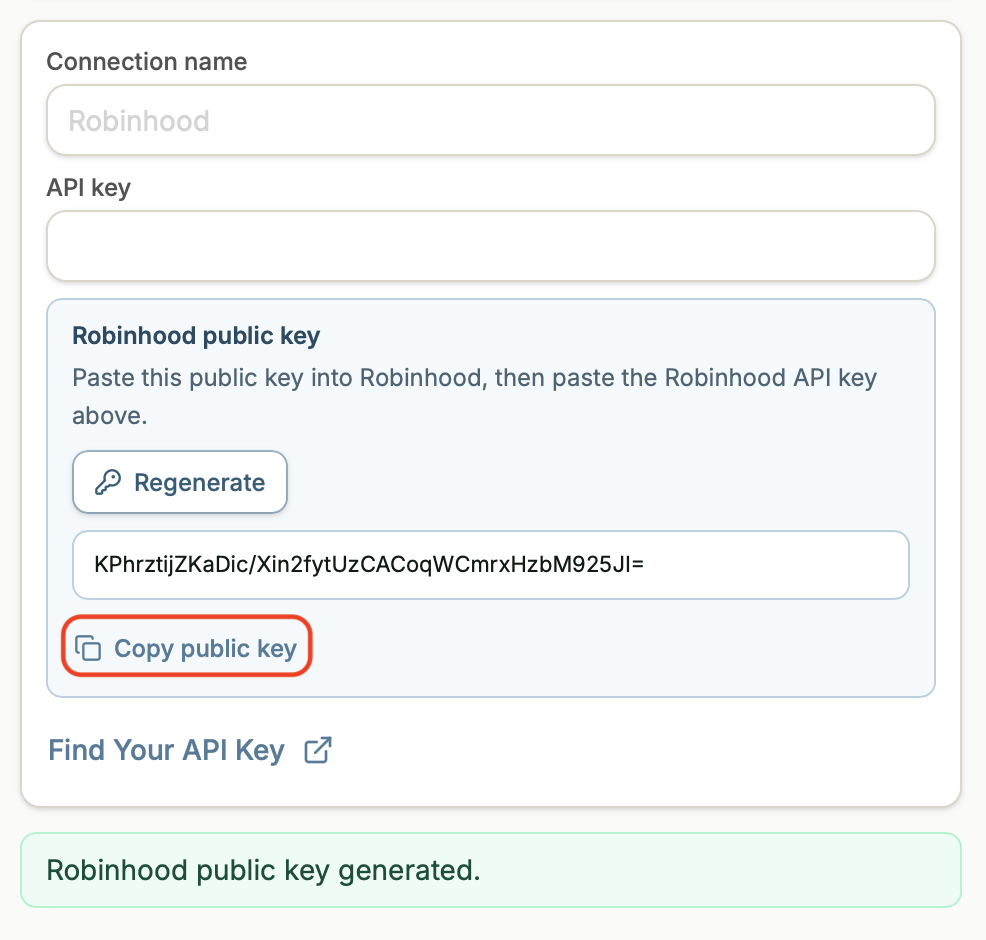
Copy the public key
Copy the public key from Trussdee, then return to Robinhood.
Name the key and set Read access
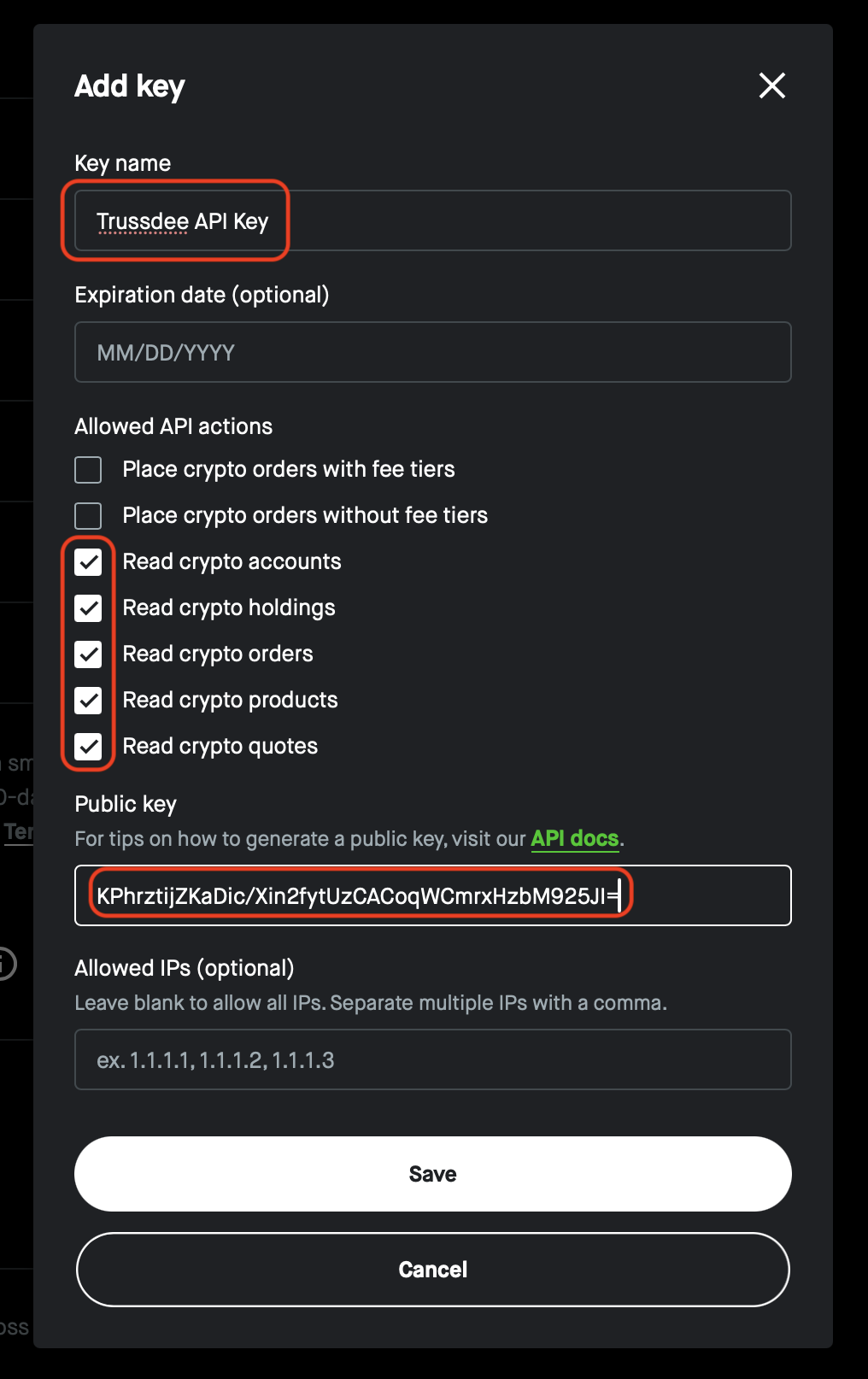
Give the key a recognizable name, select Read permissions, paste the public key from Trussdee, and click Save.
Open the key details
After the key appears in the table, click Details.
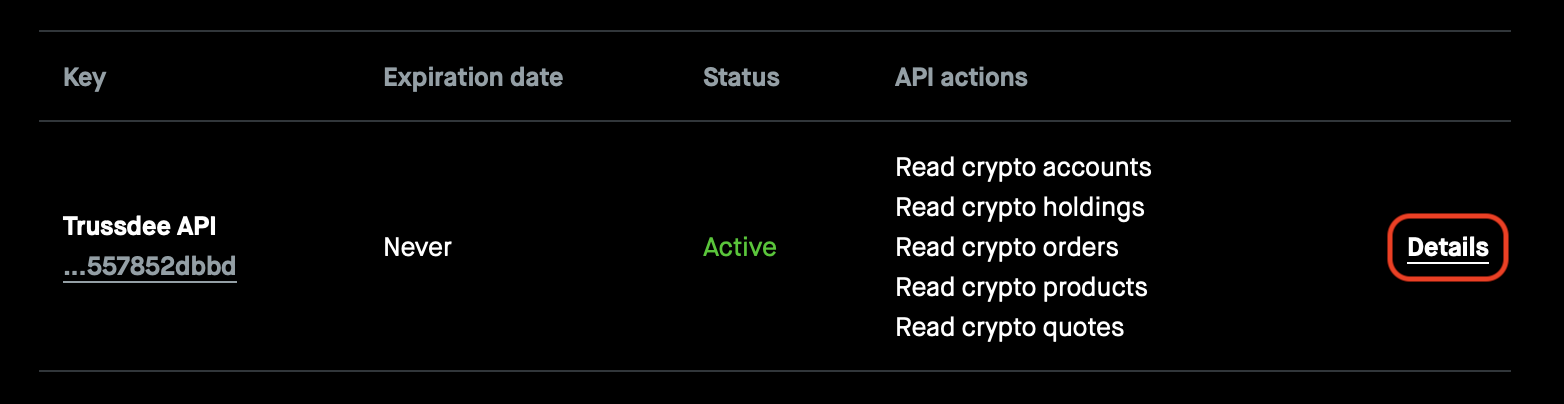
Copy the Robinhood API key
Copy the value in the API Key field, then return to the open Trussdee drawer.

Add Robinhood to Trussdee
Paste the Robinhood API key into Trussdee, confirm the connection name, and click Connect at the bottom of the drawer.
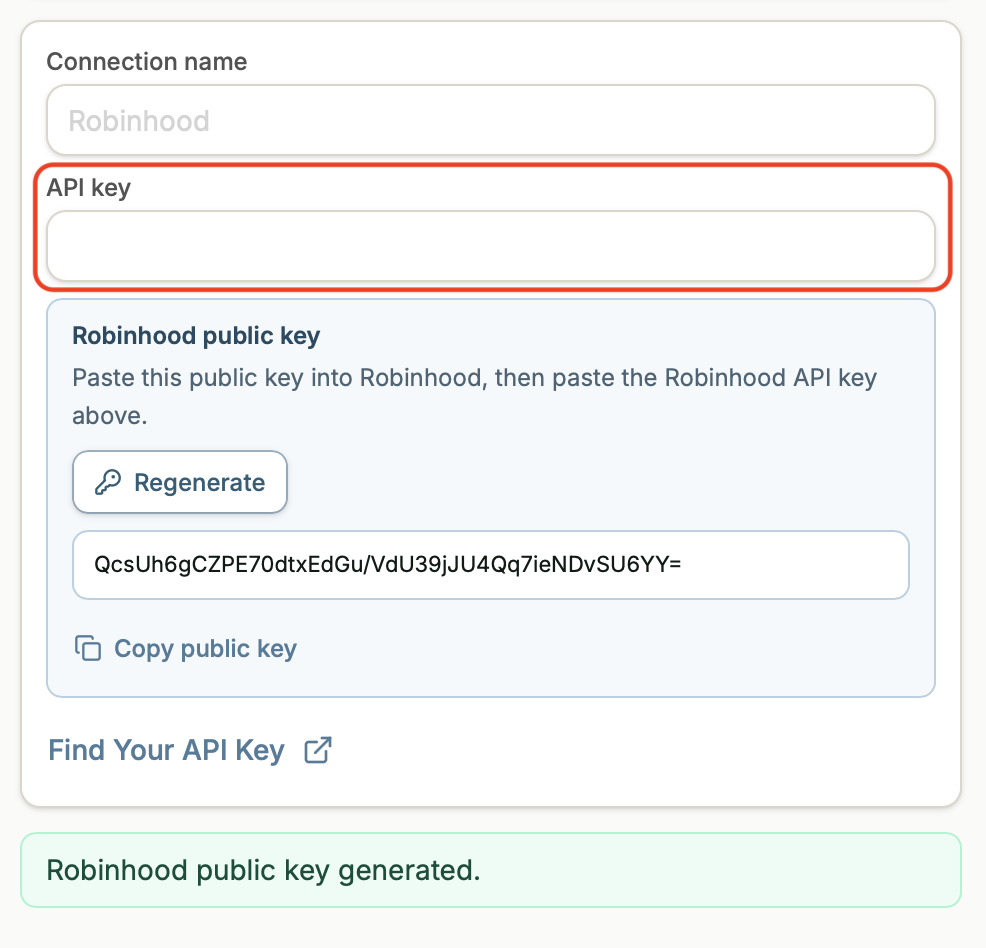
Open connection management
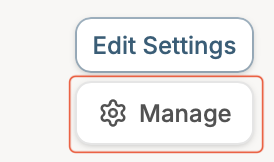
After the connection is created, find the Robinhood Crypto connection in Trussdee and click Manage.
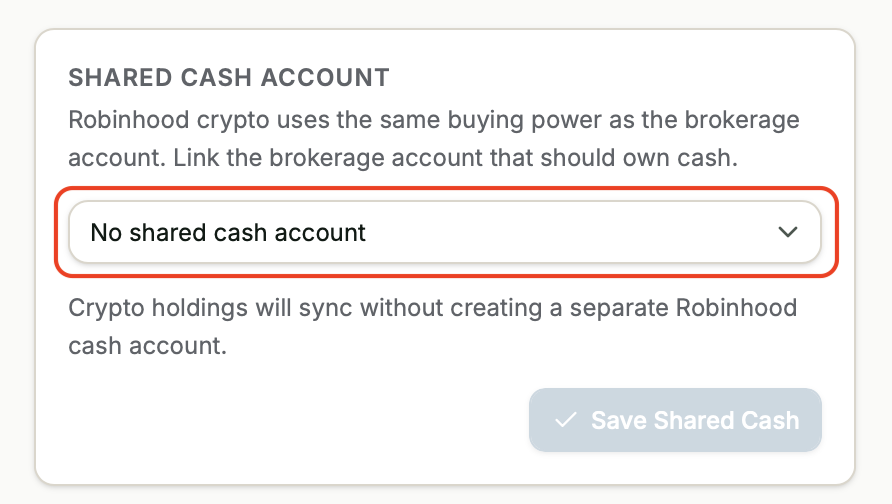
Set the shared cash account
If Robinhood Crypto should share cash with a Robinhood brokerage account, select that account. Otherwise leave No shared cash account selected, then save.
Need more help?
Email [email protected].
Was this helpful?