
Connecting Crypto.com
Trussdee can sync Crypto.com holdings and transaction data only through the Crypto.com Exchange platform. The standard Crypto.com mobile app does not provide API keys for third-party syncing.
Trussdee can sync Crypto.com holdings and transaction data only through the Crypto.com Exchange platform. The standard Crypto.com mobile app does not provide API keys for third-party syncing.
Platform note: Crypto.com has two separate experiences: the mobile app and Crypto.com Exchange. If your assets are in the mobile app, you can move them to Crypto.com Exchange for free by choosing Withdraw to another platform and selecting Crypto.com Exchange after you have created an exchange account.
Instructions
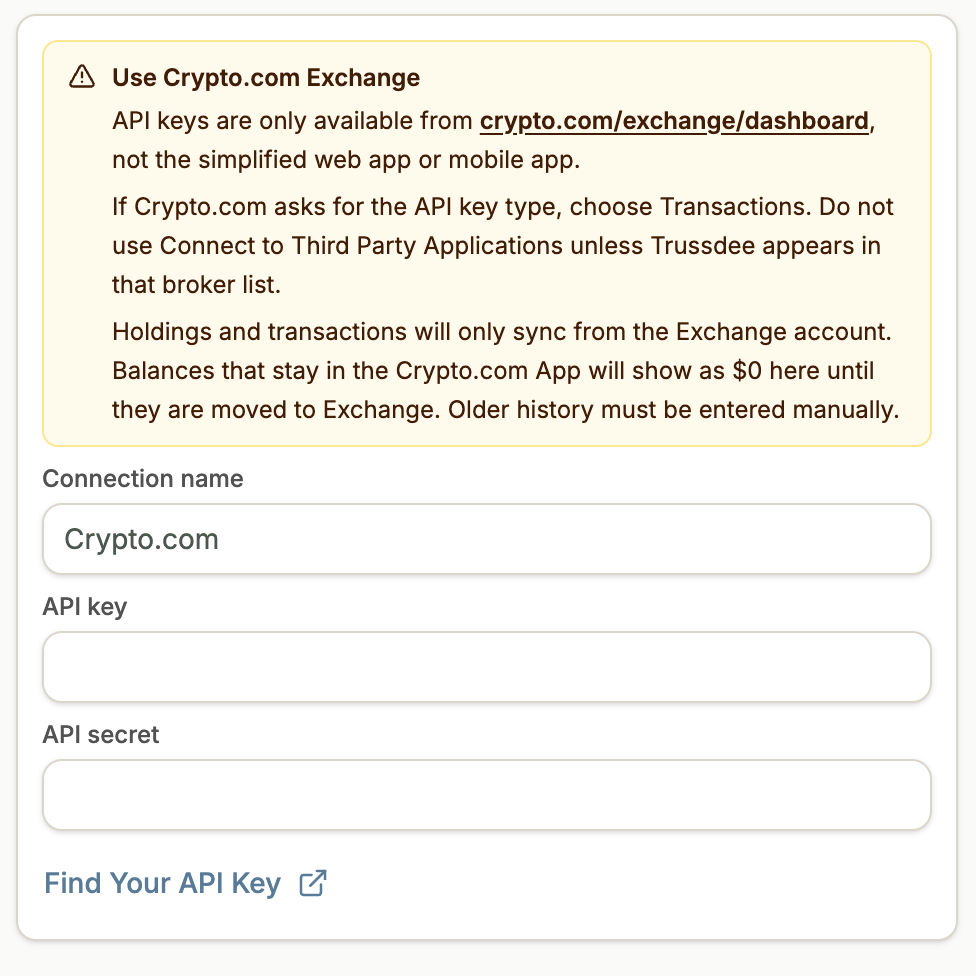
Use Crypto.com Exchange
Create or log in to your Crypto.com Exchange account. API keys are available from the exchange trading platform, not from the standard Crypto.com app.

Open Manage Account
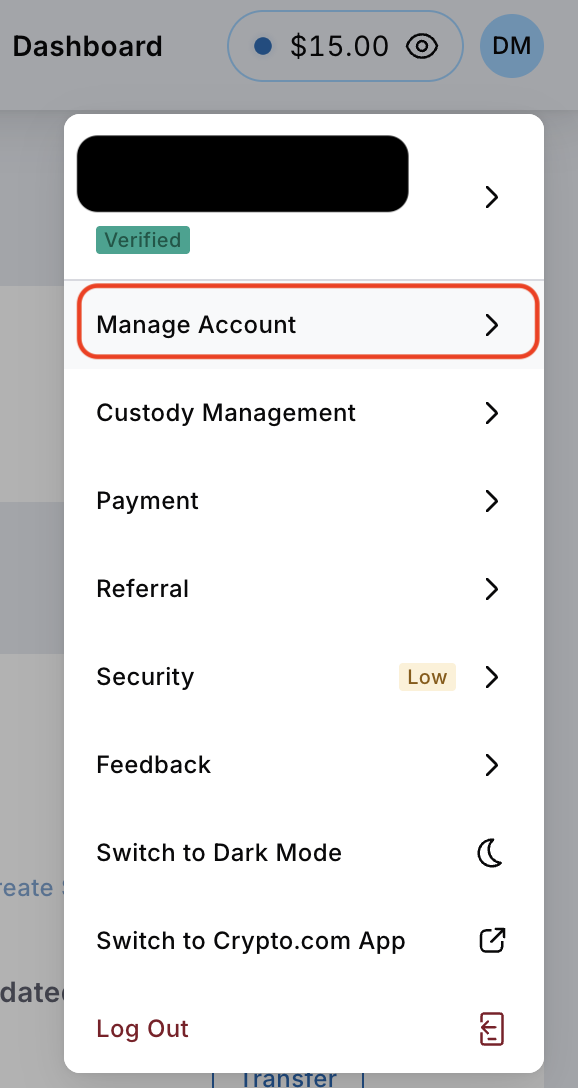
After signing in to Crypto.com Exchange, open the menu in the upper right and select Manage Account.
Create an API key
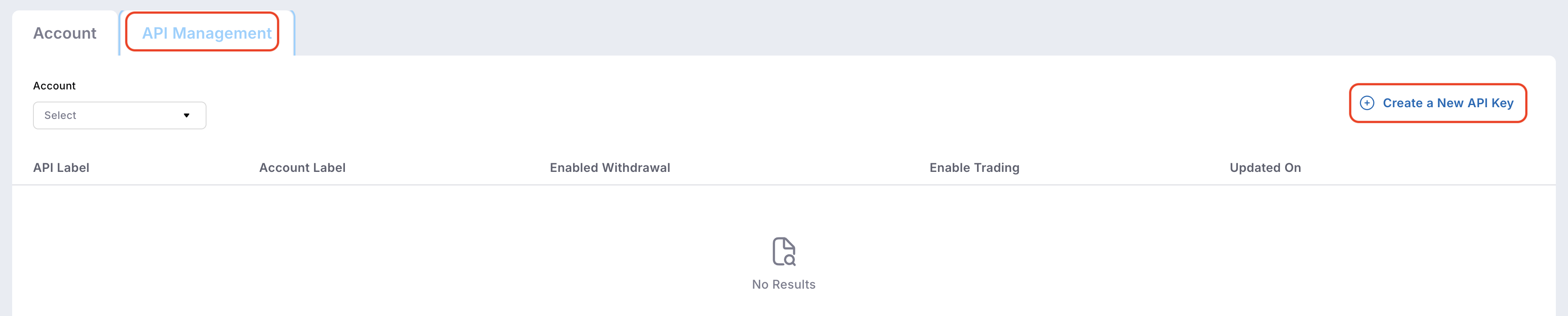
On the Manage Account dashboard, open the API Management tab and click Create API Key.
Copy the API secret immediately
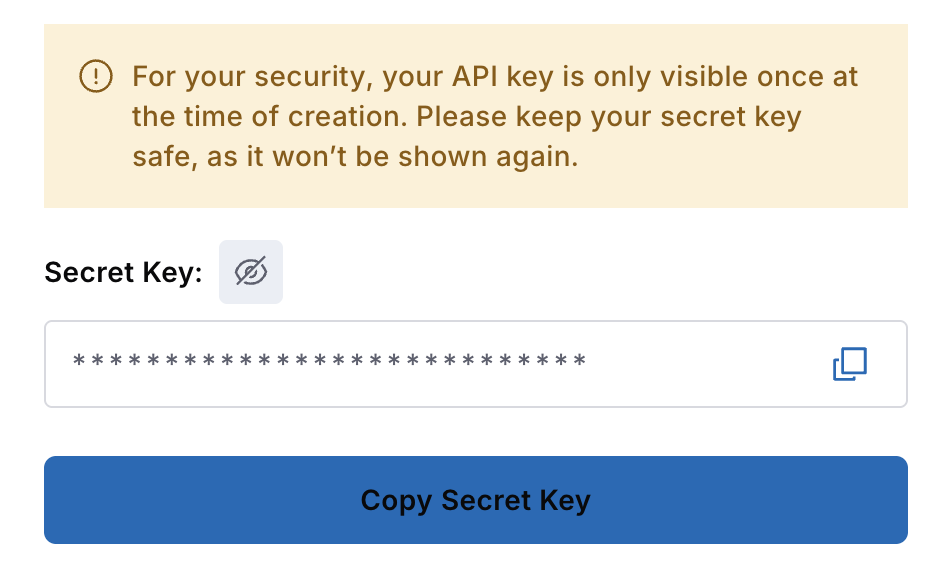
After two-factor authentication, Crypto.com shows your API secret. Copy it now and store it securely because Crypto.com will not show the secret again.
Edit the new API key
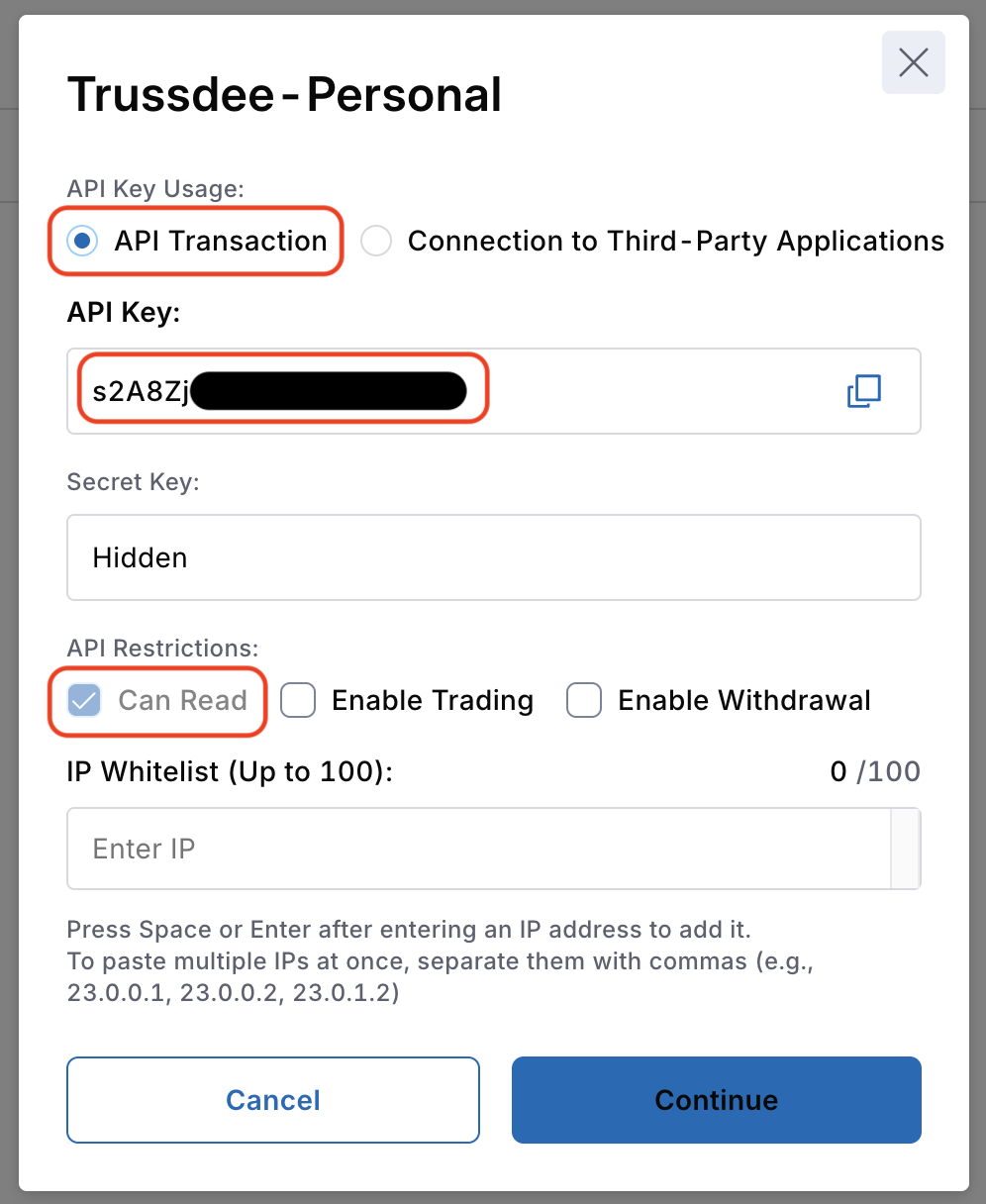
After copying the API secret, close the secret window. Back on the API Management dashboard, click Edit on the key you just created.

Set read-only transaction access
Make sure the key is enabled for transactions and set to read-only access. You can ignore the dedicated IP address section. Copy the API key from this screen; you will need it with the API secret from the previous step.
Add Crypto.com to Trussdee
In Trussdee, select Crypto.com as the provider, name the connection, enter the API key and API secret, then click Connect at the bottom of the page.
Need more help?
Email [email protected].
Was this helpful?