
Connecting Gemini
Trussdee connects to Gemini through a read-only API key created in your Gemini account settings. Use Auditor permissions so Trussdee can sync balances and transaction history without trade or withdraw...
Trussdee connects to Gemini through a read-only API key created in your Gemini account settings. Use Auditor permissions so Trussdee can sync balances and transaction history without trade or withdrawal access.
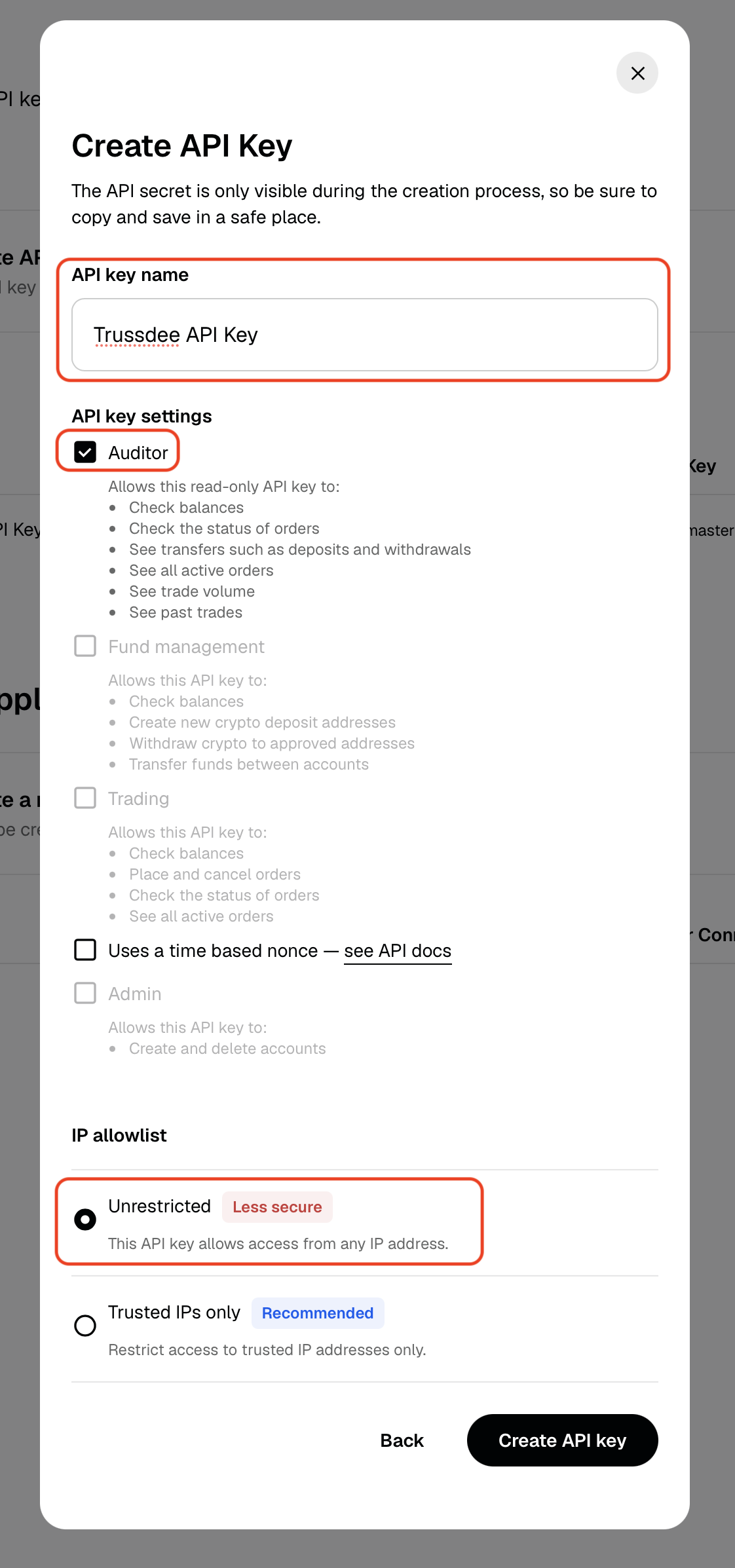
Security note: Select Auditor permissions only. Use Unrestricted for the IP allowlist so Trussdee sync jobs can connect, but do not enable trading, transfer, or withdrawal permissions.
Instructions
Open Gemini Settings
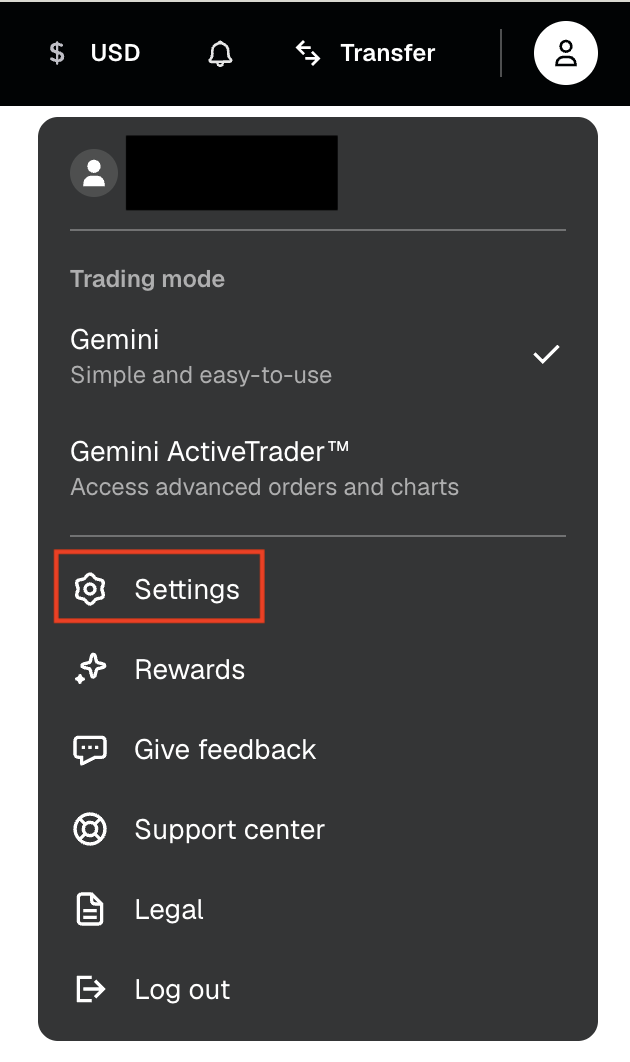
Log in to Gemini, open the profile menu in the upper-right corner, and select Settings.
Open API settings
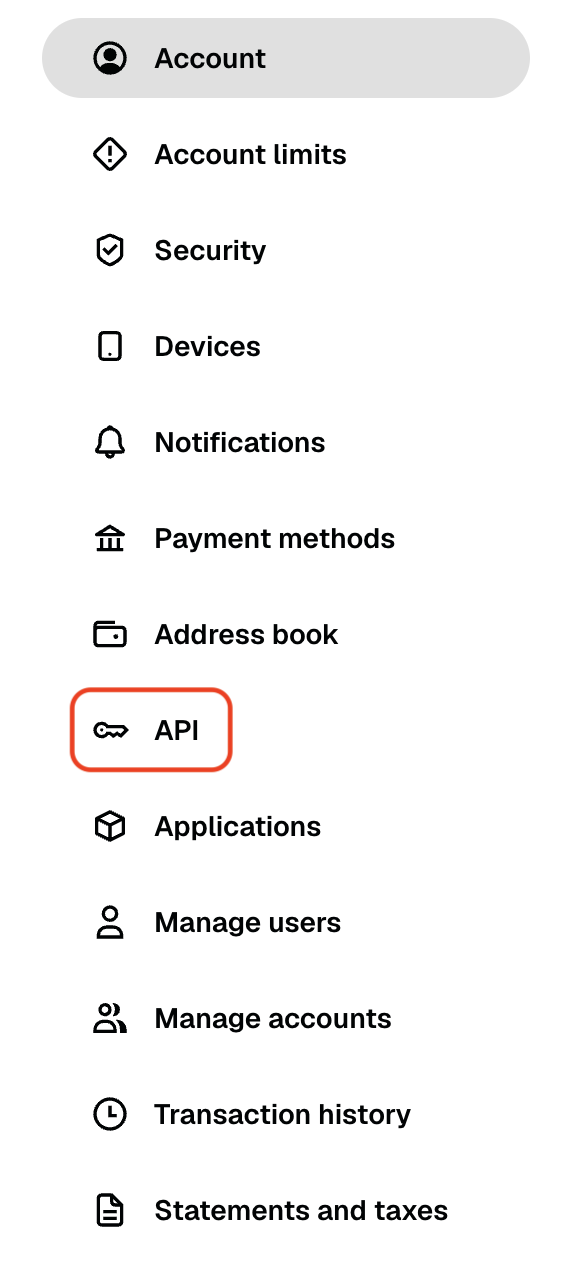
In the left-hand settings menu, select API.
Dismiss the IP notification
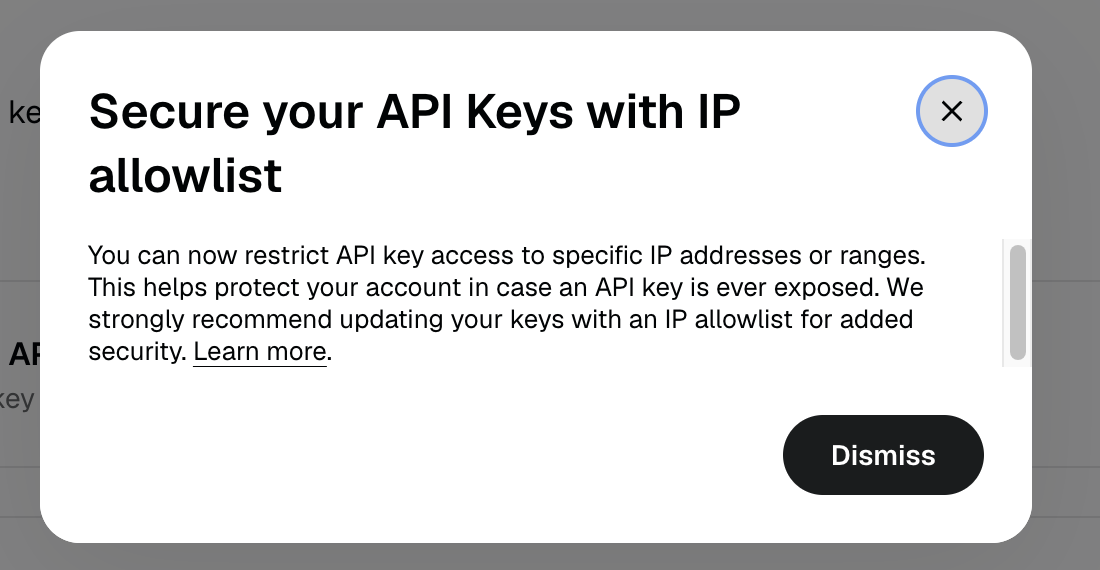
If Gemini shows an IP allowlist notification, dismiss it and continue.
Create an API key
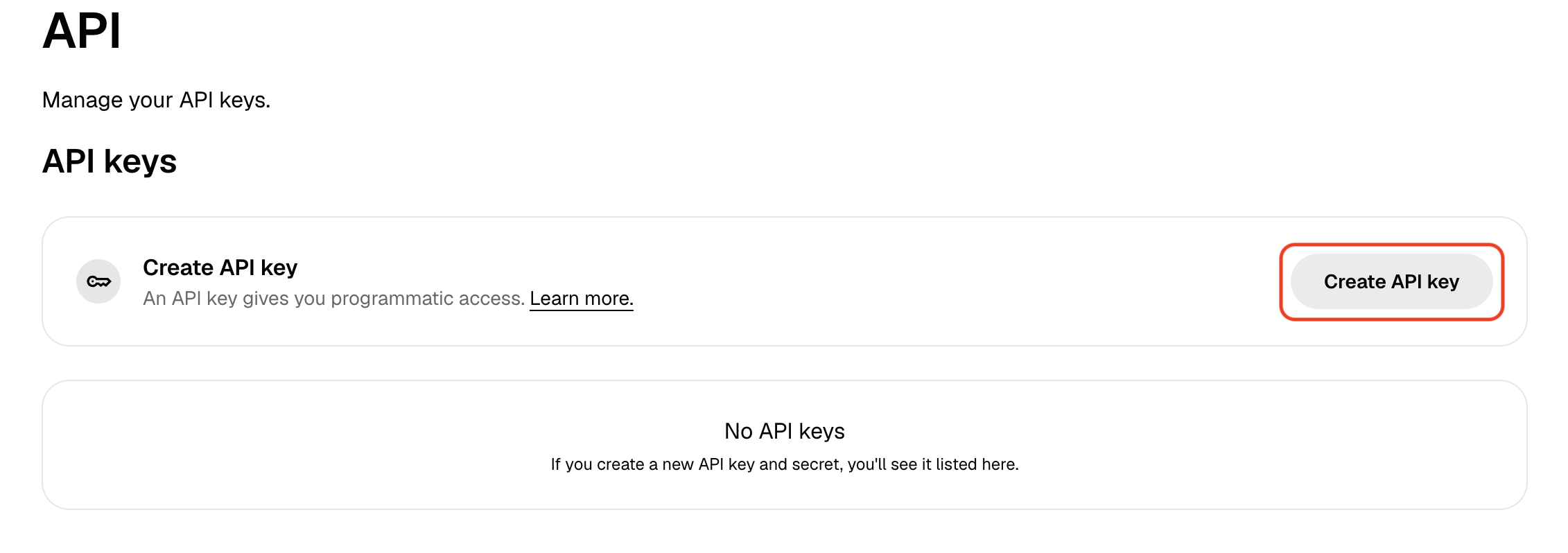
On the API settings page, click Create API key.
Select the account to sync
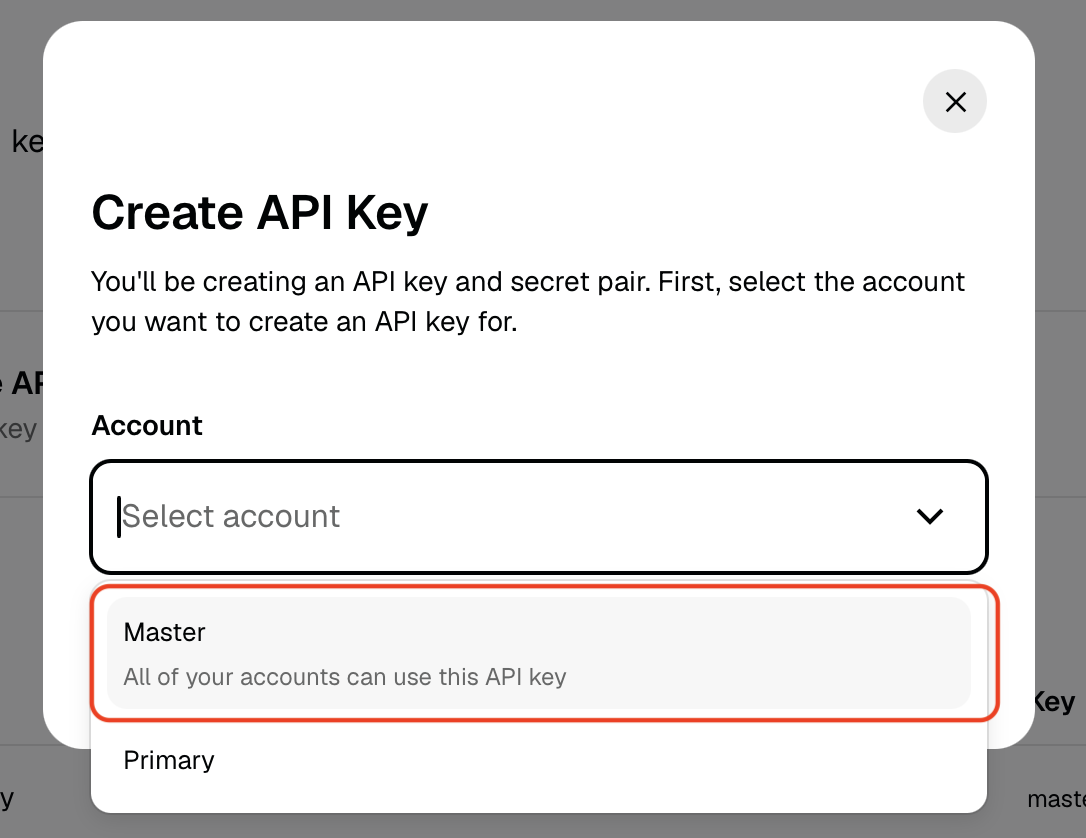
Choose the Gemini account you want Trussdee to sync. Select Master if you want to sync all accounts.
Name the key and set permissions
Name the key so you can identify it as Trussdee, select Auditor permissions, and choose Unrestricted for the IP allowlist. Auditor access is read-only.
Copy the API key and secret
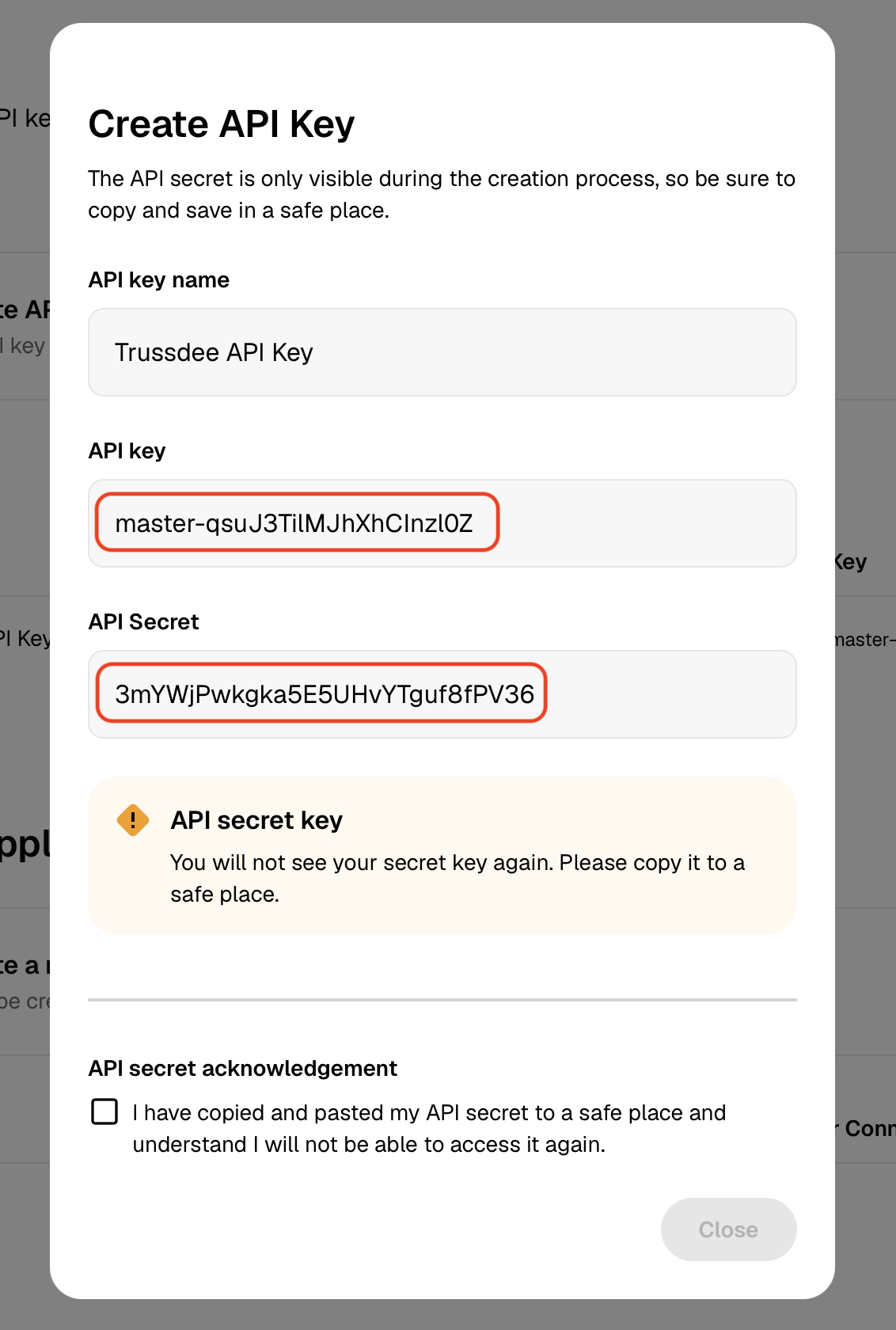
Copy both values before closing the dialog. Gemini will not show the API secret again after this screen.
Add Gemini to Trussdee
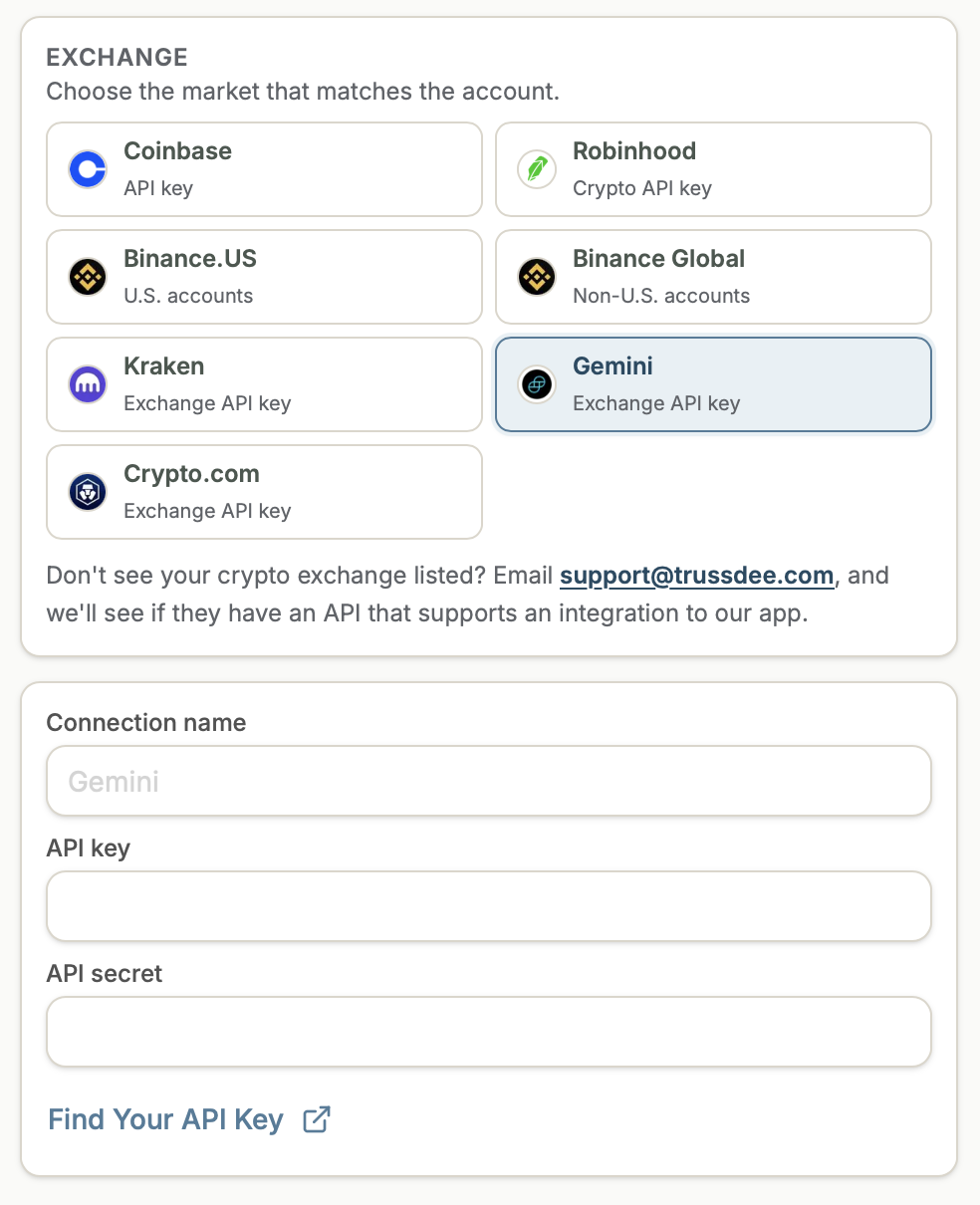
In Trussdee, select Gemini as the provider, paste the API key and API secret, then click Connect at the bottom of the drawer.
Need more help?
Email [email protected].
Was this helpful?