Connecting Binance
Trussdee supports Binance.US for U.S.-based accounts and Binance.com for international accounts. Use the matching connection type in Trussdee so the sync talks to the right Binance platform.
Trussdee supports Binance.US for U.S.-based accounts and Binance.com for international accounts. Use the matching connection type in Trussdee so the sync talks to the right Binance platform.
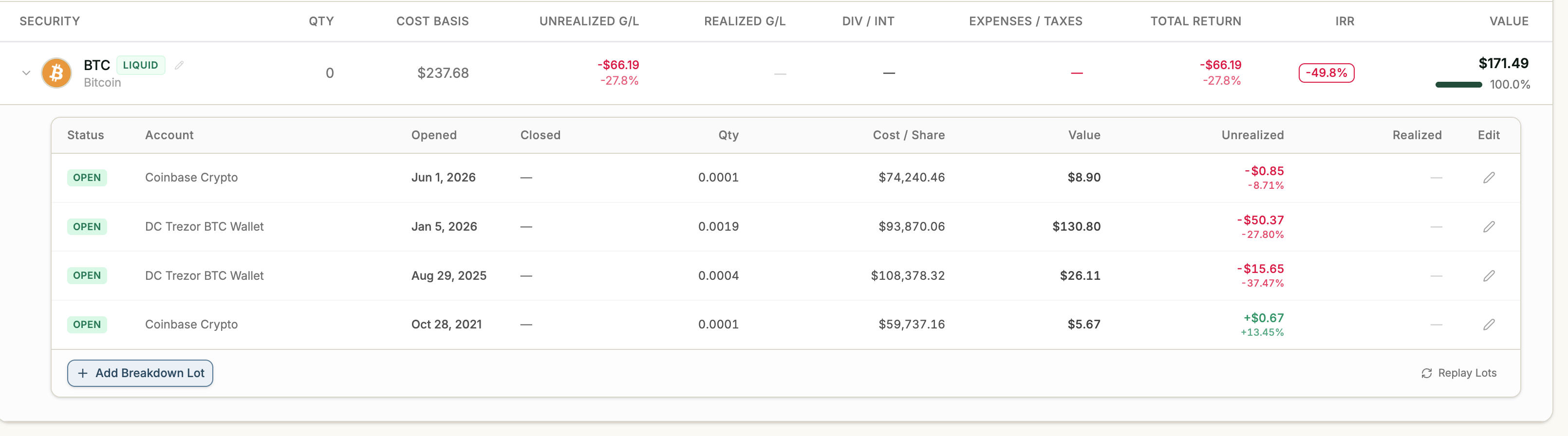
Important lot-tracking note: If you previously used Binance's quick Buy Crypto button, Binance may only send your current account balance. After the account syncs, open the coins in Holdings Performance and use Add Lot Breakdown to enter historical purchases so Trussdee can calculate performance accurately.
Instructions
Add historical lots if needed
If past Buy Crypto purchases only sync as a current balance, find the holding in Trussdee and select Add Lot Breakdown to enter the missing purchase history.
Avoid quick Buy Crypto for future trades
Going forward, avoid the quick Buy Crypto flow when you want detailed lot tracking. Binance may not send the full transaction detail from that purchase path.

Use Spot Trading instead
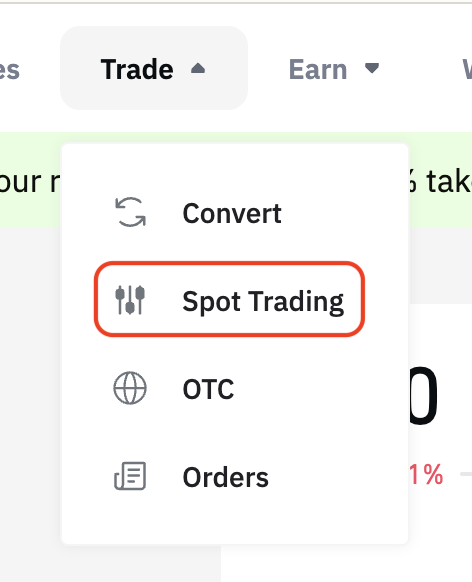
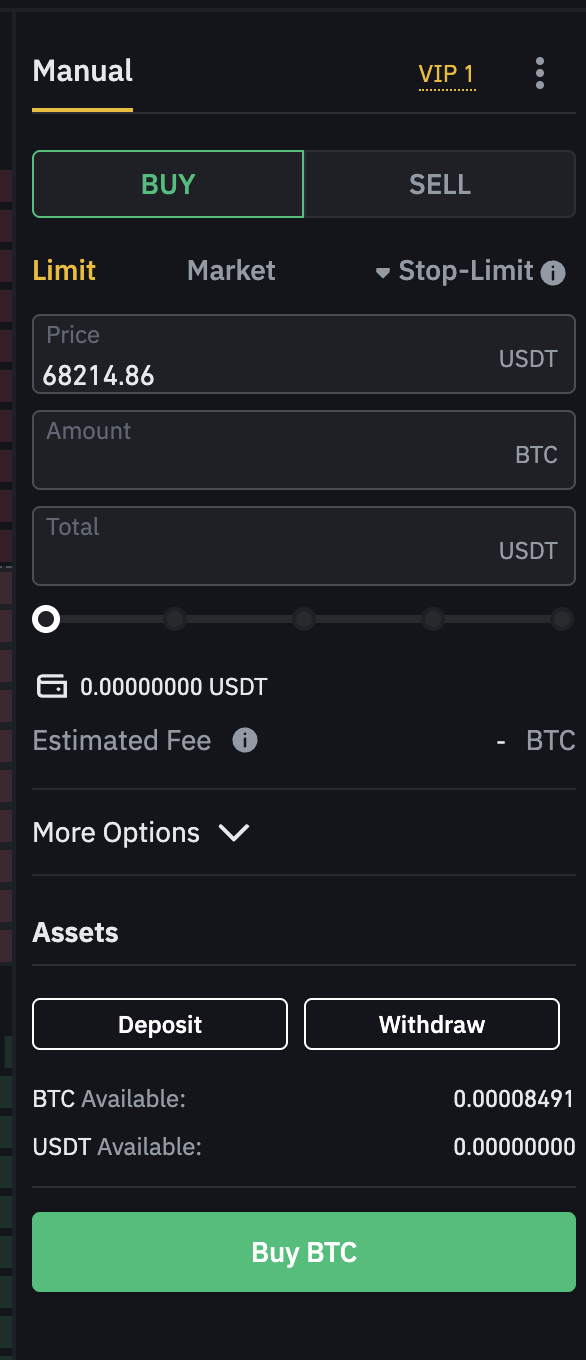
Make future Binance purchases from the Spot Trading screen. Spot trades sync with the transaction detail Trussdee needs for lots and cost basis.
Confirm the Spot Trade screen
The Spot Trade screen is where buy and sell activity should be placed when you want the exchange history to support automated cost-basis tracking.
Open API Management
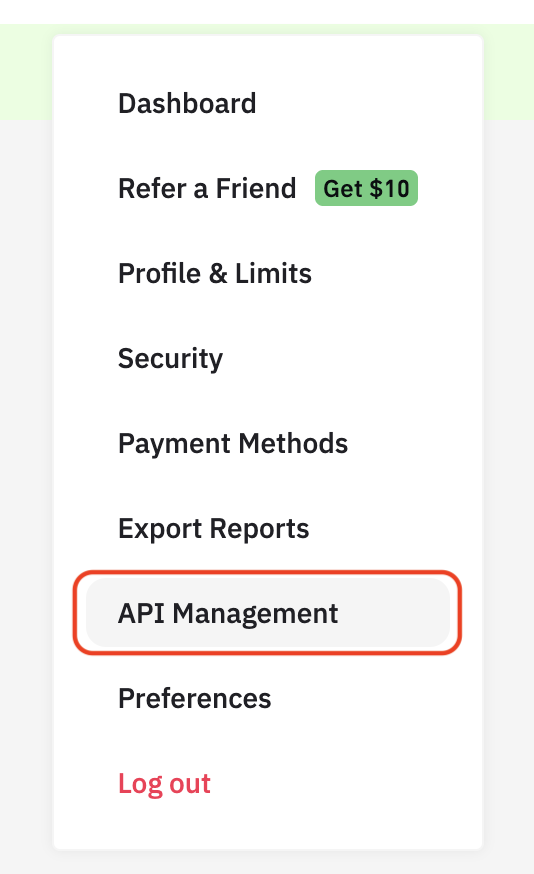
From the menu in the upper right of Binance, select API Management.
Name the API key
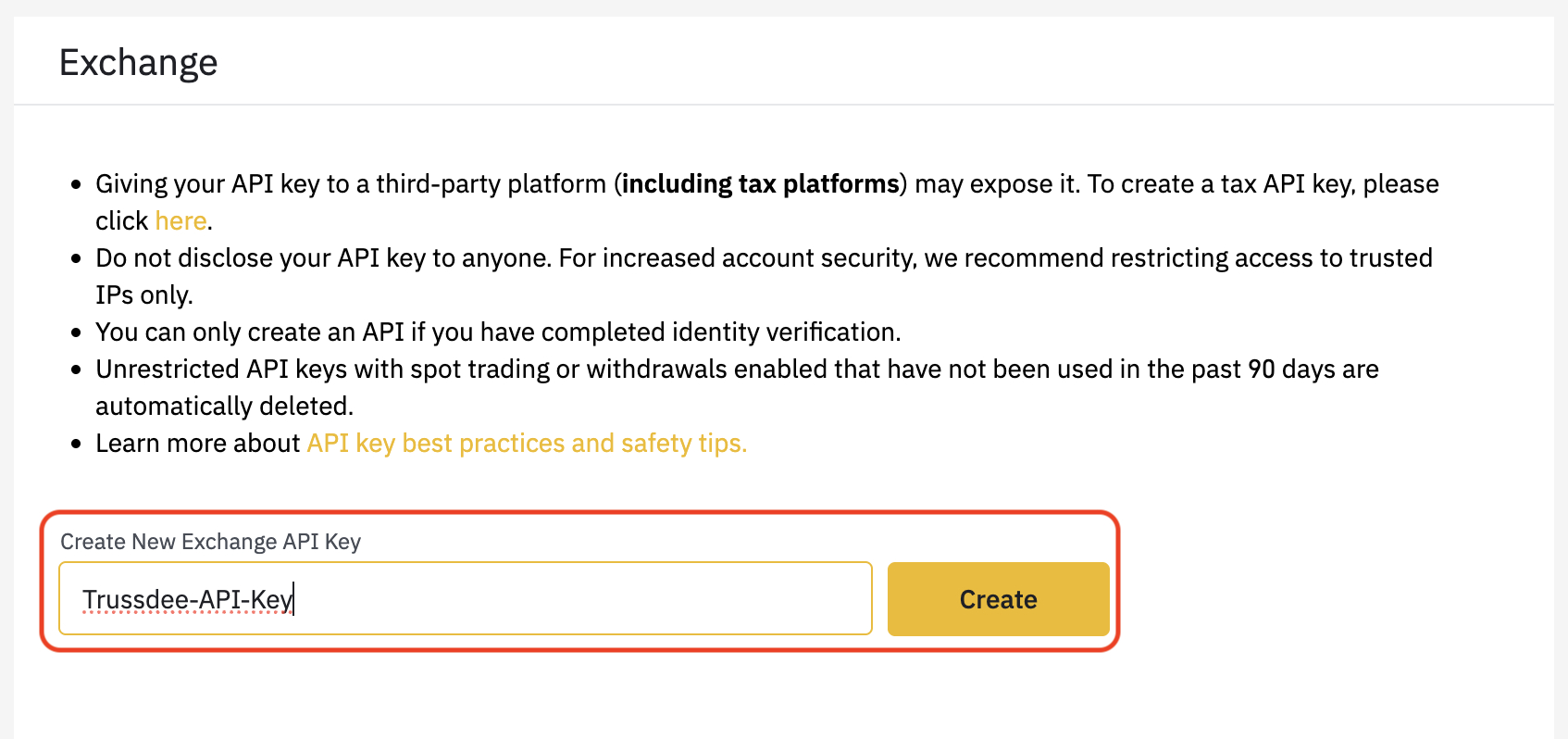
Give the key a clear name, such as Trussdee, so you can identify and remove this specific connection later without affecting other apps.
Copy the key before closing Binance
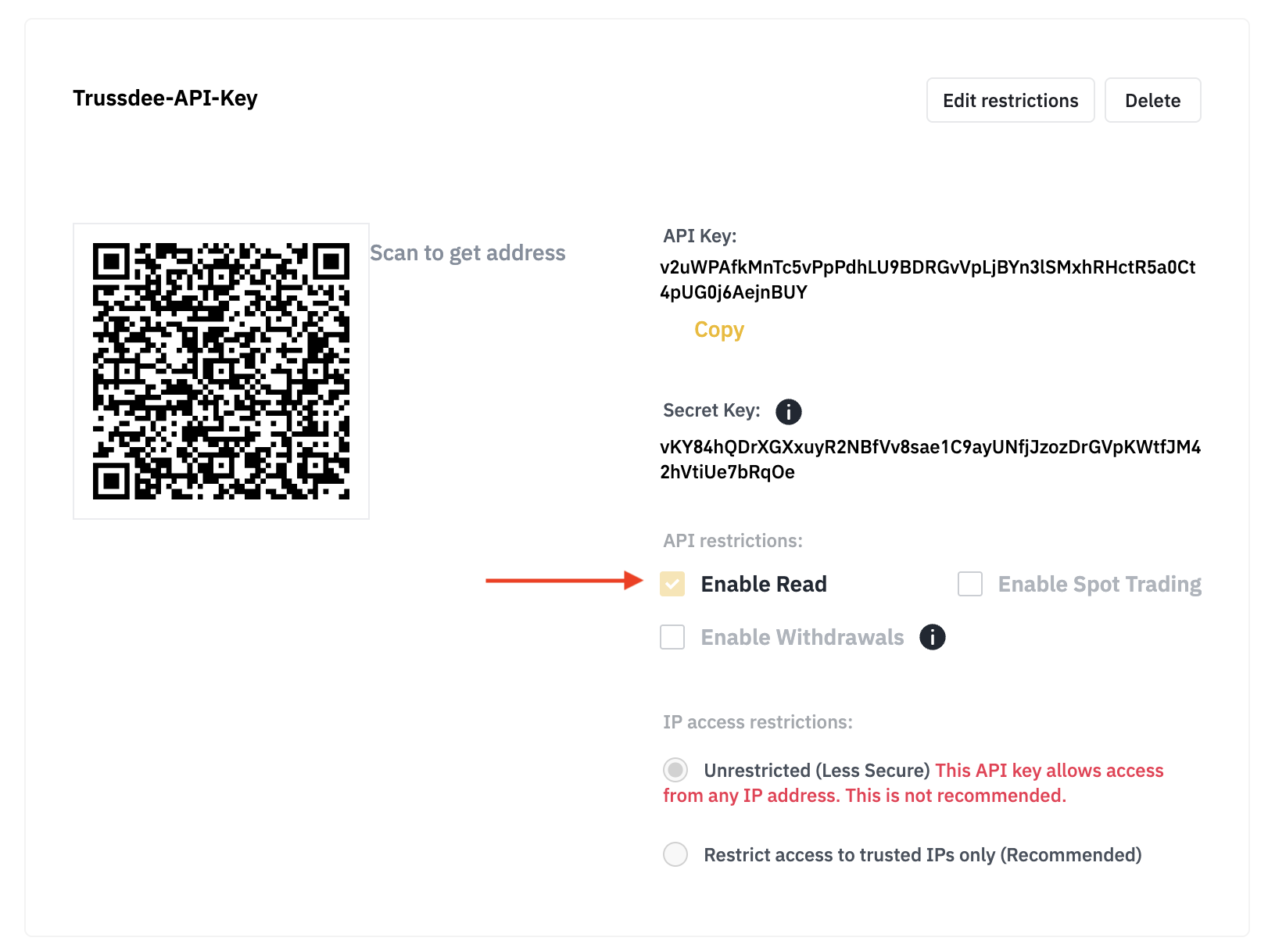
After two-factor authentication, copy the key information before closing the browser tab. For API Restrictions, leave Enable Read as the only checked permission.
Add the Binance connection in Trussdee
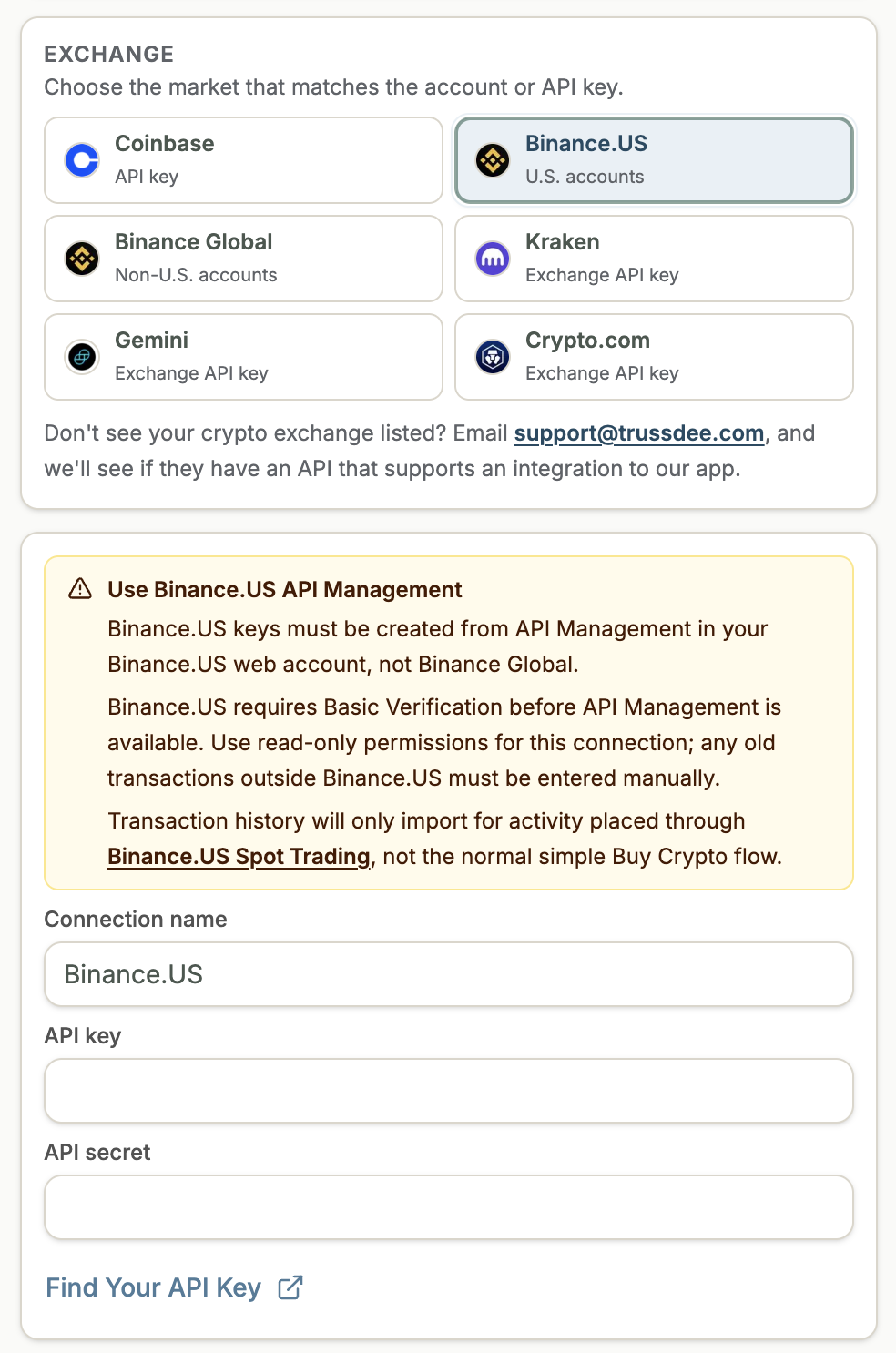
Enter the key information, name the connection, and click Connect. Choose Binance.US for U.S.-based accounts or Binance.com for international accounts.
Need more help?
Email [email protected].
Was this helpful?