
Connecting Kraken
Trussdee connects to Kraken through a read-only API key created in Kraken Pro. Kraken Pro is free to use, includes your existing Kraken holdings, and adds the advanced settings needed to create API ke...
Trussdee connects to Kraken through a read-only API key created in Kraken Pro. Kraken Pro is free to use, includes your existing Kraken holdings, and adds the advanced settings needed to create API keys.
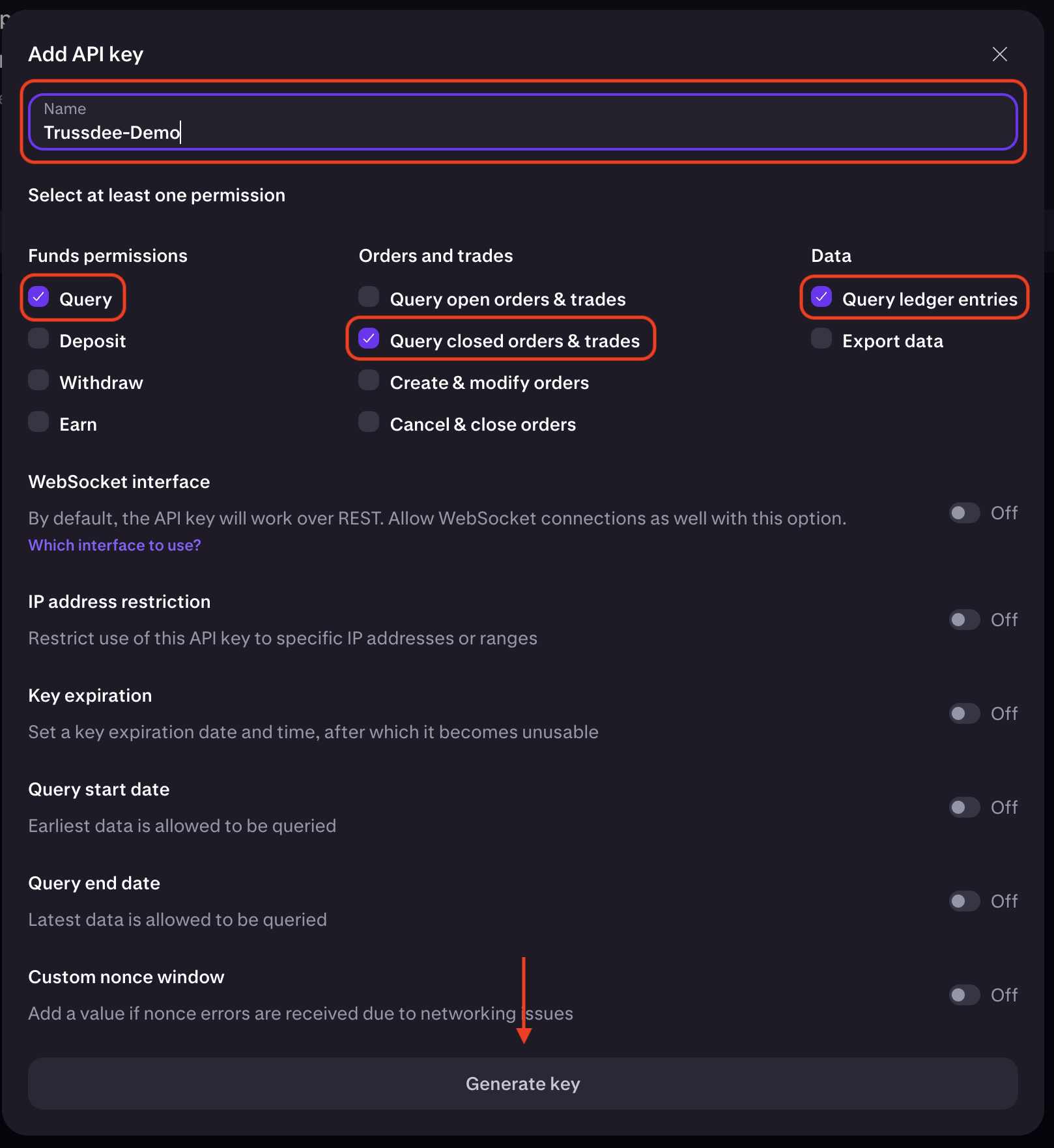
Security note: Select only Query, Query closed orders & trades, and Query ledger entries. Those permissions let Trussdee read balances and transaction history without allowing account actions.
Instructions
Switch to Kraken Pro
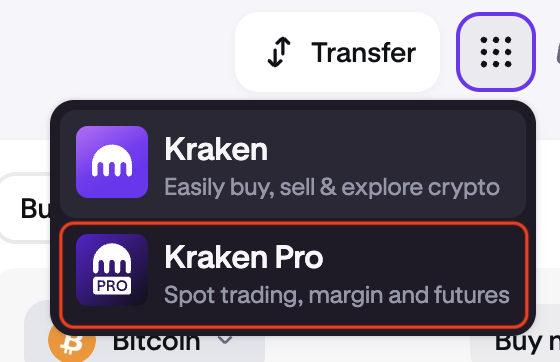
After logging in to Kraken, click the 9-by-9 app switcher icon near the upper right and open Kraken Pro. It is free to use and your Kraken holdings are available there.
Open Settings
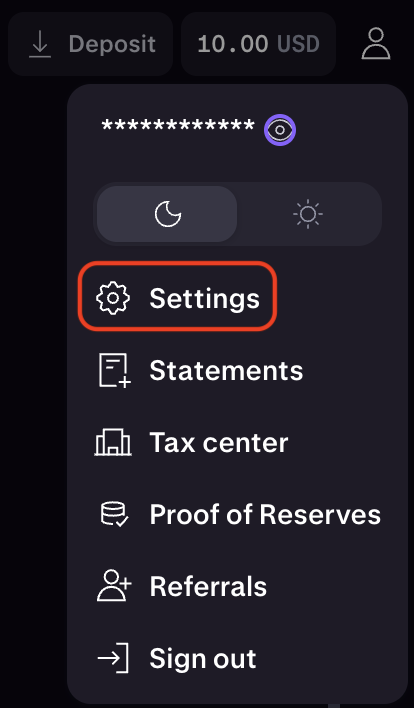
In Kraken Pro, open the dropdown menu and select Settings.
Go to Connections and APIs
From Settings, open the Connections and APIs tab.

Create a new API key
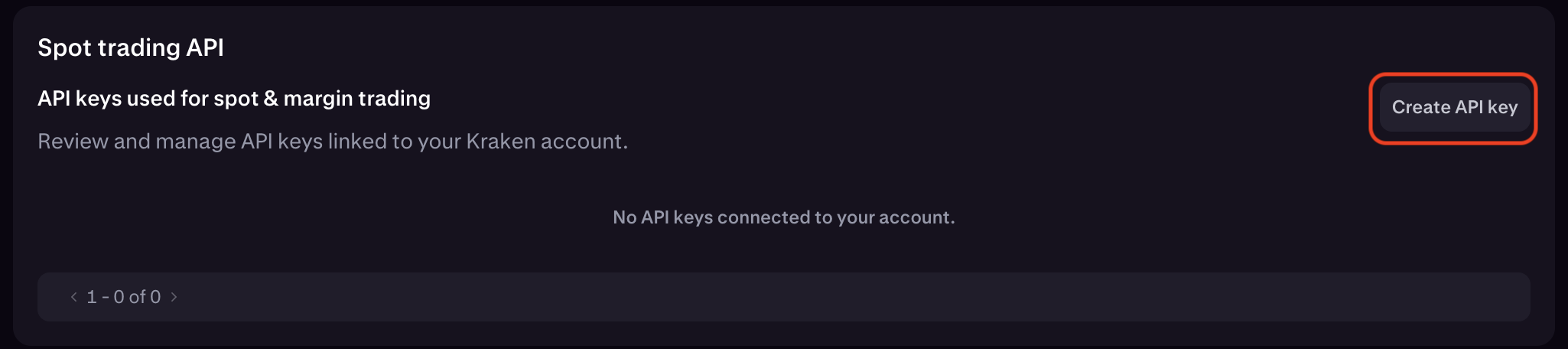
Click Create API Key to start a new key for Trussdee.
Name the key and set permissions
Name the key, then select Query, Query closed orders & trades, and Query ledger entries. Leave the other permissions off, then click Generate Key.
Copy the API key and private key
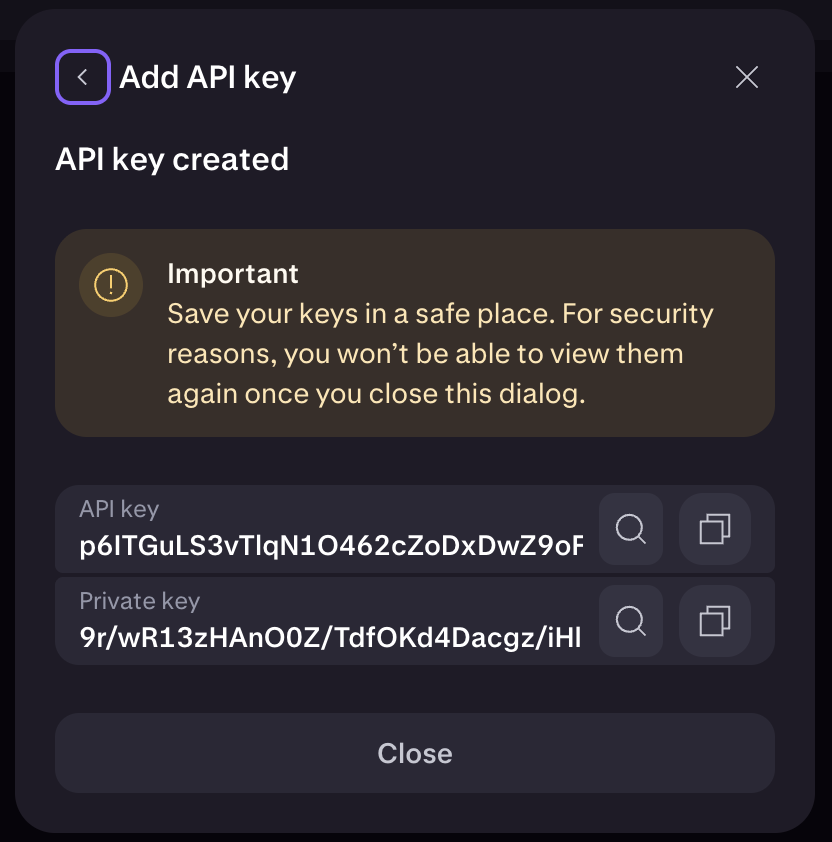
Copy the API key and Private key before closing the window. Store them securely or add them to Trussdee now; Kraken will not show these values again.
Add Kraken to Trussdee
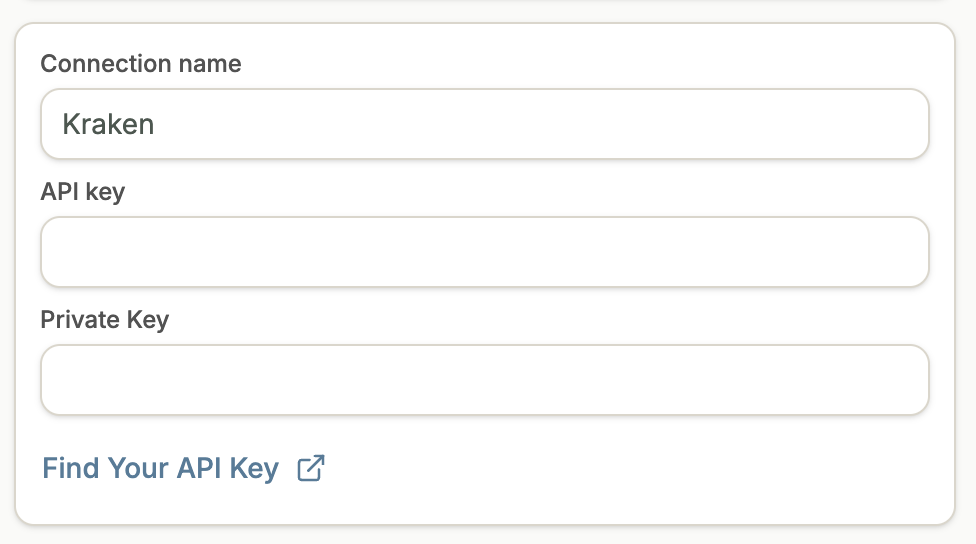
In Trussdee, select Kraken as the provider, enter the API key and Private key, name the connection, and click Connect at the bottom of the page.
Need more help?
Email [email protected].
Was this helpful?